
Cobblestone Academy’s Guide to Betonquest Editor
The Betonquest editor is a program with some assembly required. There is no automatic installation process, but there are some steps needed to get it all working.
The Betonquest editor allows us to write NPCs for Minecraft. The Editor has an “export” button. If you press that, it will check for an export script. If it can find the script, it can run the script and upload the NPCs you make directly onto my server. At least, that is how it is meant to work.
Occasionally someone cannot get the exporter and uploader to work. I can help troubleshoot, but the most common persistent problem is if the person has a really good firewall and admin settings on their computer, preventing the uploader from sending the files. Sometimes it works then to run the program as an admin. Sometimes that is not possible. If it is not possible then you can save the files as a zip and email it to me, and I will upload it to the server.
Step One: Assemble the Files.
For it to work properly, you need three files in the same folder. They should look like this or the Mac equivalent of this: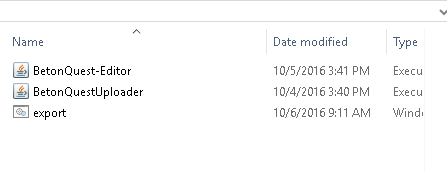
The editor can be purchased from https://sellfy.com/p/nE5Y/. You can download the uploader and export files from there too, or I may send you the export files.
You only need one export file. If you have a Mac or Linux computer take the export file that ends in .sh. If you use Windows, use the export file that ends in .bat. You do not need to log into dropbox in order to access these files.
Step Two: Make Sure You Have Java.
Check that you have Java 8 installed on your computer. In Windows, you can do this by doing a quick search for “About Java.” If you do not have Java 8 please install it. It is freely available here: http://www.oracle.com/technetwork/java/javase/downloads/jre8-downloads-2133155.html
Step Three: Open the Editor
Check that the editor works. Double click on the icon to open it. If it works, you should see a big brown screen. From there you can click “file,” “new set” and then “new package.” Please name your set and packages with a single-word and only letters, no fancy symbols or spaces.
If you’re really excited, and want to see how the editor works, you can check out my video on it here: https://www.youtube.com/watch?v=yBxIlWxCq0s&t=6s
Step Four: Editing the Export File.
You will need to have a username and password to upload files to my server. I will assign you these. Once I have assigned them, you will need to edit the export file you will need to click on it with the right mouse button and choose “edit” or “open with” instead of “open”. You can edit the files in notepad or its Mac equivalent.
Step Five: Troubleshooting.
If everything is set up properly, pressing “Export” on a Betonquest file will be pretty uneventful. If you watch the folder where the program is stored, you may see a zip file being created and then deleted. If things go wrong, the zip file might be created and not deleted. You will not get any sort of message to tell you that things worked.
To test if it worked, you would have to log onto the Minecraft server and check your NPC. Does it have the updates you expect? (Obviously this only works once you have your own NPCs on the server!)
If updates were not made, try the following:
- If an NPC that used to work is no longer working, then your NPC script is probably the problem, and not the uploader. Check if you have any text option names with symbols in it, or if you called a text option “yes” or “no.” Change those.
- Make sure that you save your files with a one-word name. For example: JanesNPC rather than Jane’s NPC or even Janes_NPC. Use “save-as” to save it with a one-word name if you have already saved it before. Check that your character IDs are also written as one-word IDs. Make sure you don’t have fancy characters in your script.
- Try logging in as an administrator and pressing the export button while an admin.
- Try temporarily disabling your firewall.
- Check with me. I can check the server console. It may be that the file is uploading fine but that an error in the script is preventing it from showing up.
The troubleshooting for experts method:
DO NOT EVEN READ THE FOLLOWING IF TECH THINGS SCARE YOU. I WILL WALK YOU THROUGH THIS OR DO THIS FOR YOU IF NECESSARY.
- Check if the pressing export created a zip file next to the uploader. It will be named export_whateveryourfilenamewas.zip
- If it is there, open the system command prompt or terminal.
- Navigate within the terminal or command prompt to whichever file your betonquest uploader is stored in. In Windows this this might be done with something like “cd Desktop/myfoldername”. On a Mac you might use “ cd ~/Desktop/myfoldername/”
- Now run the export script in the terminal. On a Mac use: “./export.sh export_whateveryourfilenamewas.zip” and on a Windows computer use: “export.bat export_whateveryourfilenamewas.zip “
- If you get an error message on your computer take a screen capture of it and send it to me! If you do not get an error message, check on the server to see if your NPC now has its script. (When I do this on my computer, with everything working properly, I end up seeing the contents of my export script in the terminal. That is not an error message.)